Open WebUI on Bouchet
Beta
Open WebUI is currently in beta. Please report any issues to research.computing@yale.edu.
Open WebUI provides a browser-based AI assistant on Bouchet. You can use it to ask questions about the cluster, inspect your jobs and files, analyze data with Python, and work with research documents. The default AI model is hosted by YCRC, so you can use these features at no cost and without a commercial AI account or API key.
Open WebUI runs as an Open OnDemand interactive app in your own Slurm session. With the YCRC-hosted model, prompts, uploaded files, and information retrieved from Bouchet are processed by YCRC rather than a commercial AI provider. You can also connect your own models or outside services; see Use your own models for the data-sharing implications.
The assistant can:
- Answer HPC questions using YCRC guidance on Slurm, storage, software, GPUs, and more
- Inspect your work by checking jobs, resource usage, storage quotas, available software, and your own files
- Analyze data with Python, create plots, and save generated files in a designated output directory
- Work with documents including PDFs, spreadsheets, scripts, and images
- Use your reference materials through reusable knowledge bases and customized assistants
Launch Open WebUI
Choose Open WebUI - LLM Chat Interface from the Interactive Apps menu on the Bouchet web portal and follow the instructions for launching an interactive app. When the session is running, click Connect to Open WebUI. You are signed in automatically as yourself.
Optional Python environment
The Python environment for code setting determines which packages are available when the assistant runs Python. Default (YCRC) includes NumPy, pandas, SciPy, and Matplotlib. Select your own Conda environment if you want the assistant to use packages you've installed for your research.
Your Conda environments appear in the list when they have ipykernel installed. Install it from a compute-node session, replacing my_env with your environment's name:
module load miniconda
conda install -n my_env ipykernel
Reload the launch page afterward. If the selected environment cannot run code, Open WebUI displays a banner explaining the problem and uses the default environment instead.
Use Additional modules to load software modules for code the assistant runs, for example R or SAMtools. Separate multiple modules with spaces.
Open WebUI itself does not need a GPU, so GPU partitions are not offered when launching it.
One session at a time
You can run one Open WebUI session at a time. To start a new session, delete the existing one under My Interactive Sessions. Closing your browser tab does not end the Slurm job.
Your chats, settings, and uploaded files remain available when you launch a later session.
Chat with the YCRC model
Choose a model
Choose from the model menu at the top of the chat:
| Model | Use for |
|---|---|
| Qwen3.8-Flash-Next | Most questions; faster responses with brief reasoning |
| Qwen3.8-Flash-Next-think | More difficult problems that benefit from extended reasoning; slower responses |
YCRC occasionally updates the hosted model. The model menu shows the current options, and existing chats continue using the updated model.
Ask about your work on Bouchet
The assistant can answer questions and use built-in Bouchet tools to inspect your account and available resources. For example:
What jobs do I have running right now?
Did any of my jobs fail or time out in the last 7 days?
How efficiently did job 12345678 use its CPUs and memory?
How much of my home and project quota am I using?
Which GPU partitions have idle GPUs right now?
Is GROMACS installed? Which versions, and how do I load one?
Check this job script before I submit it: ...
What columns are in ~/data/results.csv?
The built-in Bouchet tools are read-only. They can inspect your jobs, quotas, available software, and files you own, but cannot submit, cancel, or change jobs or modify files. The assistant does not read credentials such as SSH keys. If you ask it to prepare a job script, it can check the script against the scheduler without submitting it and give you the script to submit yourself.
Code Interpreter and user-installed extensions have different permissions. See the sections below before using them.
Voice input
Click the microphone in the message box to dictate. Speech is transcribed on Bouchet, with support for many languages and accents. Recordings are not retained as voice files; the transcribed text is saved with the chat. The first transcription in a session may take longer.
Use the speaker icon below a reply to hear it read aloud with your browser's built-in voices.
Analyze data with Python
Code Interpreter, in the integrations menu below the message box, lets the assistant write and run Python. It is enabled by default.
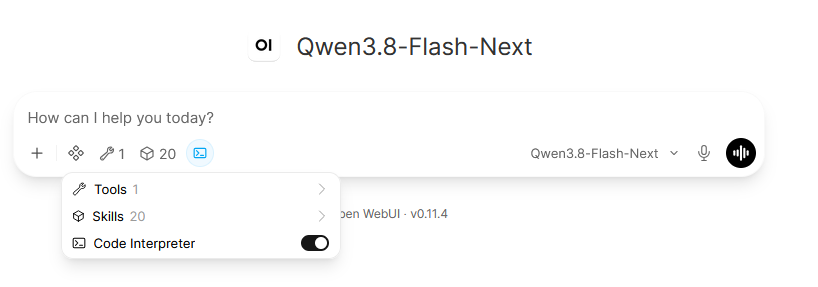
Code runs as your user account in your Bouchet session:
- Input: it can read files you can access, so you can analyze data directly from your directories.
- Output: it can write only to
~/openwebui-outputs. Generated CSV files, figures, and scripts are saved there. If you request another destination, the assistant can give you a command to copy the result yourself. - Environment: it uses the Python environment selected at launch. Packages cannot be installed through chat; install them in your Conda environment and relaunch.
- Plots: figures can appear directly in the conversation.
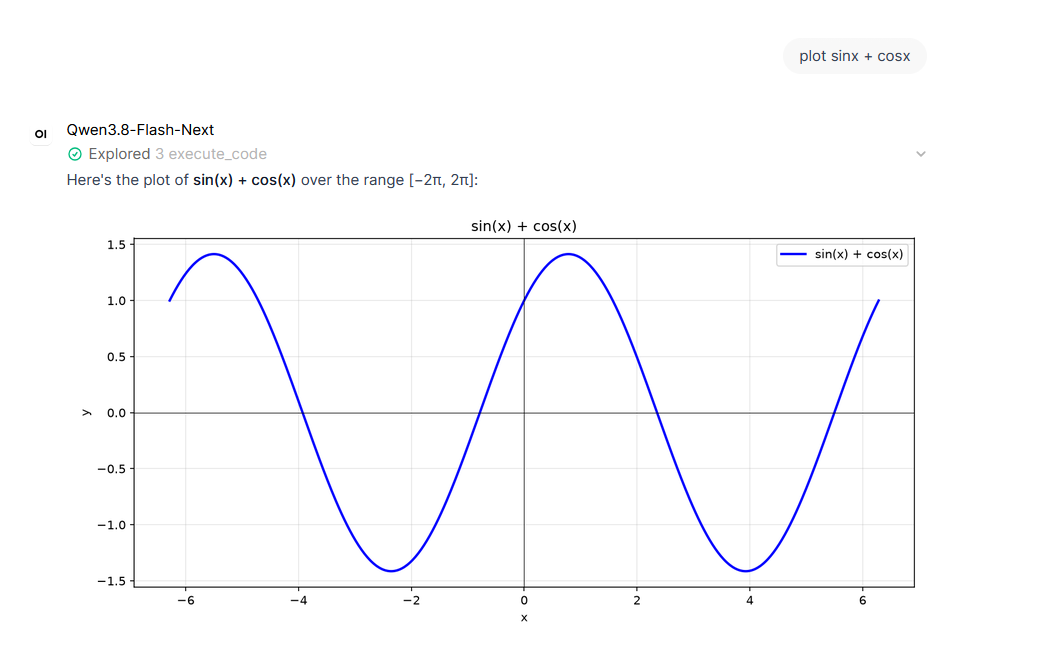
Code Interpreter is intended for lightweight analysis, visualization, and exploratory Python tasks. It shares the resources of your Open WebUI session. Run larger or resource-intensive computations as separate Slurm jobs.
Upload files and use knowledge bases
Use the + button in the message box to attach files, capture a screenshot (Capture), or add a webpage, notes, knowledge bases, or earlier chats. You can also drag files into the chat or paste an image.
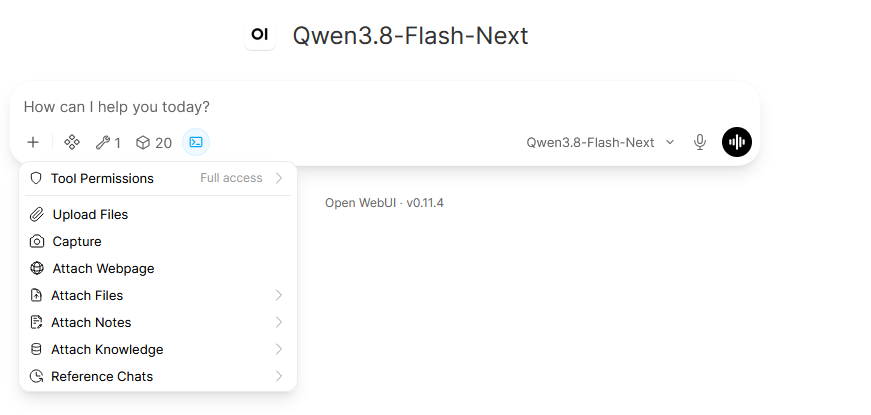
The assistant can work with images, PDFs (including scanned documents), Word and Excel files, CSV files, and scripts. Large files or images can use substantial space in the model's conversation context, leaving less room for later messages.
Knowledge bases
A knowledge base is a reusable collection of documents. Create one under Workspace > Knowledge and upload your materials.
- Small collections: type
#in a chat and select a knowledge base to include its documents directly. Use this when you want the assistant to consider the full collection. - Larger collections: attach the knowledge base to a custom model so the assistant can search for relevant material instead of including every document at once. You can also name a knowledge base in your question; the assistant can search your knowledge bases from any chat.
Including a large collection with # may exceed the model's context limit. For better search results, use specific terms, filenames, or phrases from the documents.
Customize your assistant
Chat Controls (the icon at the top right of a chat) configure the current conversation:
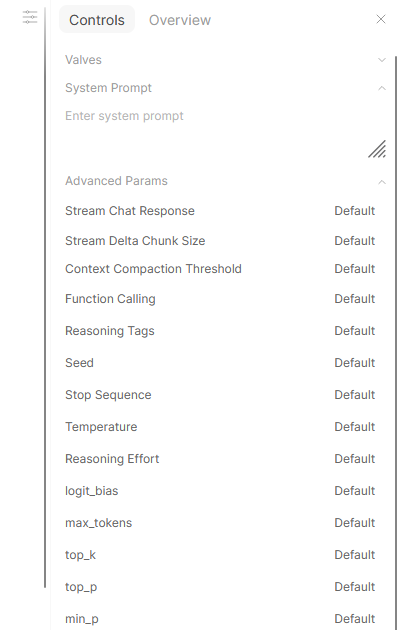
- System Prompt: add instructions such as "Answer as a grant reviewer" or "Reply in Spanish."
- Advanced Params: adjust settings such as temperature and output limits. Most users can leave these at their defaults. Avoid setting a low
max_tokensvalue: it also covers reasoning tokens, so the model may run out before producing a visible answer.
Other customization options include:
- Prompts (Workspace > Prompts): save reusable prompts and insert them by typing
/. - Custom models (Workspace > Models): create a named assistant based on the YCRC-hosted model, with its own instructions and attached knowledge bases.
- Memory (Settings > Personalization): manage information the assistant remembers across chats.
- Settings: change the theme, language, and other display preferences.
Advanced: custom tools and functions
Tools in Workspace and Functions in the Admin Panel let you add Python extensions, including code shared by others. Unlike the restricted Code Interpreter, these extensions can run as your account with broader access to your files. Only install code you trust. Do not assume they share the read-only limits of the built-in Bouchet tools.
Use your own models
You can connect other model services under Admin Panel > Settings > Connections, using the service address and an API key if the service requires one. Connected models appear in the model menu.
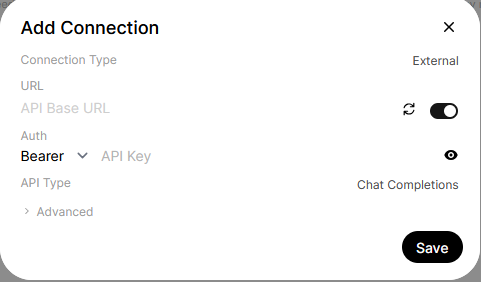
You can also connect a model you host in a separate Bouchet job using Ollama or vLLM. Enter the address of the compute node and the port used by your model server.
Services outside YCRC
When you use a model hosted outside YCRC, such as a commercial AI service, prompts and any attachments or tool results provided to that model are sent to the external service. Check the data classification guidance for commercial AI services before sharing research information.
Tool permissions for external models
When an external model requests information from a Bouchet tool or asks to run code, Open WebUI prompts you to Allow or Deny the action before sending its results to the external service. Denying access lets the conversation continue without that information.
To disable individual approval prompts for a chat, open + > Tool Permissions > Full access. Full access allows the external model to use the available tools without asking each time and may transmit retrieved data or code results to that provider. Use it only when the model and the information it may access are appropriate for that service. The setting applies to the current chat; new chats ask again.
These additional approval prompts are not used for the YCRC-hosted model or models you run on Bouchet. Connections added during a session may ask until you next launch Open WebUI.
Privacy and saved data
- Chats and uploads: saved in your home directory at
~/.open-webui, subject to your account's filesystem permissions. Regular chats, uploads, and settings persist across sessions. - Generated files: stored in
~/openwebui-outputs. - Temporary Chat: does not appear in your saved chat history. This does not necessarily mean that no temporary processing files or system logs exist.
- Sharing: use Download in a chat's menu to export it as PDF, text, or JSON. Share links are disabled because the links would stop working when your session ends.
- Managing data: use Settings > Data Controls to export all chats or delete chats and uploaded files.
Connecting to an external model changes where information sent to that model is processed; see Use your own models.
Limits and good practice
- Shared model: the YCRC-hosted model serves multiple users. Responses may be slower at busy times, and the number of requests each user can have in progress may be limited.
- Verify important answers: AI-generated answers can be incorrect, including information about cluster policies and limits. Check the YCRC documentation or contact YCRC when accuracy matters.
- Unavailable features: web search and image generation.
- Managed settings: YCRC resets certain Admin Panel settings when Open WebUI launches, including the YCRC model connection, code execution, and built-in skills and tools. Your own connections, custom models, and preferences are retained.
Troubleshoot
"You already have an Open WebUI session"
Connect to the existing session from My Interactive Sessions, or delete it before launching another. Closing a browser tab does not stop the session. When a session ends, your saved chats and settings remain available for the next launch.
"Open WebUI doesn't use GPUs"
Open WebUI itself runs without a GPU. To use a model requiring a GPU, start Ollama or vLLM in a separate GPU job and connect it under Use your own models.
A banner says your Python environment can't run code
The selected environment may be missing ipykernel, or its required modules may not have loaded. Code Interpreter uses the default environment until you fix the issue and relaunch.
"Your message didn't reach the model"
Try sending the message again. This can happen if you send a message immediately after opening a chat.
"Lost connection"
Open WebUI normally reconnects automatically. If it does not, reload the page. If your Slurm session has ended or reached its walltime, launch another session; your saved chats are still available.
"This model's maximum context length is ..."
The conversation and its attachments exceed the amount the model can process at once. Start a new chat, or use a searchable knowledge base instead of attaching a large collection directly.