Large Transfers with Globus
For large data transfers both within Yale and to external collaborators, we recommend using Globus. Globus is a file transfer service that is efficient and easy to use. It has several advantages:
- Robust and fast transfers of large files and/or large collections of files.
- Files can be transferred between your computer and the clusters.
- Files can be transferred between Yale and other sites.
- A web and command-line interface for starting and monitoring transfers.
- Access to specific files or directories granted to external collaborators in a secure way.
Globus transfers data between computers set up as "collections". The official YCRC collections are listed below.
Course Accounts
Globus does not work for course accounts (<course_id>_<netid>).
Please try the other transfer methods listed in our Transfer documentation instead.
Cluster Collections
We currently support collections for the following clusters.
| Cluster | Globus Collections |
|---|---|
| Bouchet | Yale CRC Bouchet HA* |
| Hopper Low Risk | Yale CRC Hopper Low Risk |
| Grace | Yale CRC Grace |
| McCleary | Yale CRC McCleary |
| Milgram | Yale CRC Milgram |
* Make sure to use Yale CRC Bouchet HA. Yale CRC Bouchet (without HA) is deprecated and will be removed this spring.
Grace & McCleary Decommission Data Migration
The Grace Globus Collection, Yale CRC Grace, has been upgraded to provide faster transfer speeds to Bouchet. Both McCleary and Grace users have access to Yale CRC Grace. Users with both McCleary and Grace accounts will see their Grace home directories when connecting to the collection, but can also access their McCleary home directory at /vast/palmer/home.mccleary/<netid>.
For Bouchet, Grace and McCleary, these collections provide access to all files you normally have access to.
For security reasons, Milgram Globus uses a staging area (/gpfs/milgram/globus/$NETID).
Once uploaded, data should be moved from this staging area to its final location within Milgram.
Files in the staging area are purged after 21 days.
For Hopper, the Low Risk collection mounts a staging area. Once you have staged your data, please submit this form to have the files transferred to Hopper.
Get Started with Globus
Below we describe how to authenticate and transfer using Globus collections. We also recommend reviewing the Official Globus Documentation.
Authenticate
You can also
- In a browser, go to app.globus.org.
- Use the pull-down menu to select Yale and click "Continue".
- If you are not already logged into CAS, you will be prompted to log in.
- [First login only] Do not associate with another account yet unless you are familiar with doing this
- [First login only] Select "non-profit research or educational purposes"
- [First login only] Click on "Allow" for allowing Globus Web App
Transfer Between Globus Collections
- From the file manager interface enter the name of the collection you would like to browse in the collection field (e.g. Yale CRC Grace)
- Navigate to your desired directory and select one or more files and/or directories you would like to transfer
- Click on the right-hand side menu option "Transfer or Sync to..."
- Enter the second collection name in the right search box (e.g. another cluster or your personal collection)
- Navigate to the destination on the second collection for your transfer
- [Optional] To complete a partial transfer, you can click the "apply sync level" checkbox in the "Transfer & Timer Options" (located between the Start buttons). For most transfers "L2" is an appropriate option. Then Globus will resume the transfer where it left off instead of recopying already copied files.
- Click the Start button above the left-hand pane.
Transfer Files to/from Your Computer
Upload or Download Directly from Globus Web App
From the file manager interface enter the name of the collection you would like to browse in the collection field (e.g. Yale CRC Hopper Low Risk). You will need to be on the Yale VPN is you are off campus or connecting to a secure cluster.
Upload
- In the main pane, navigate to the destination for your files
- To Upload, select "Upload" in the sidebar and browse to the file or folder you would like to upload
Download
- In the main pane, navigate to your file
- Right-Click and select "Download"
Set Up an Globus Collection on Your Computer
You can set up your own collection for transferring data to and from your own computer with Globus Connect Personal.
To transfer or share data between two personal collections, you will need to request access to the YCRC's Globus Plus subscription on this page.
Share Your Data with Globus
Share via URL link
To obtain a direct URL (HTTPS) link to a file in a Globus collection, right click and select "Get Link". Then click on the copy icon to the right of the option "access the selected file directly". Note that this link will only work for Globus users with access permission to that file.
Share as a Collection
To share large file collections within Yale and to external collaborators, you can use a Globus 'Collection' using the below procedure:
- Log onto the Globus app using your Yale netid credentials; then click 'File Manager' and type 'mccleary' into the Collection text box. A collection 'Yale CRC McCleary' should show up in the results (circled in red below); click on it.

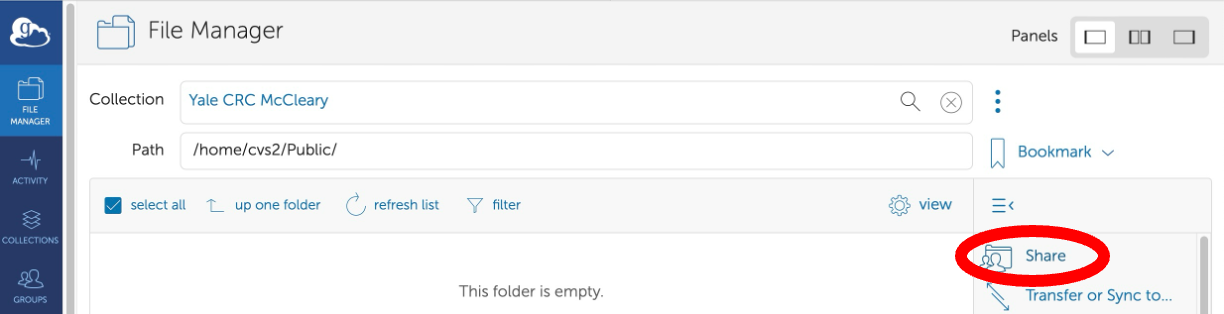
- In the resulting panel, navigate to the location you wish to share by double clicking folder names and/or clicking 'Up one folder'. Then click 'Share' (circled in red below):
- In the resulting panel, click on 'Add Guest Collection' (circled in red below):

- In the resulting panel, give your collection a name in the 'Display Name' text box; then click on 'Create Collection' (circled in red below):

- In the resulting panel, click on 'Add Permissions - Share With' (circled in red below):
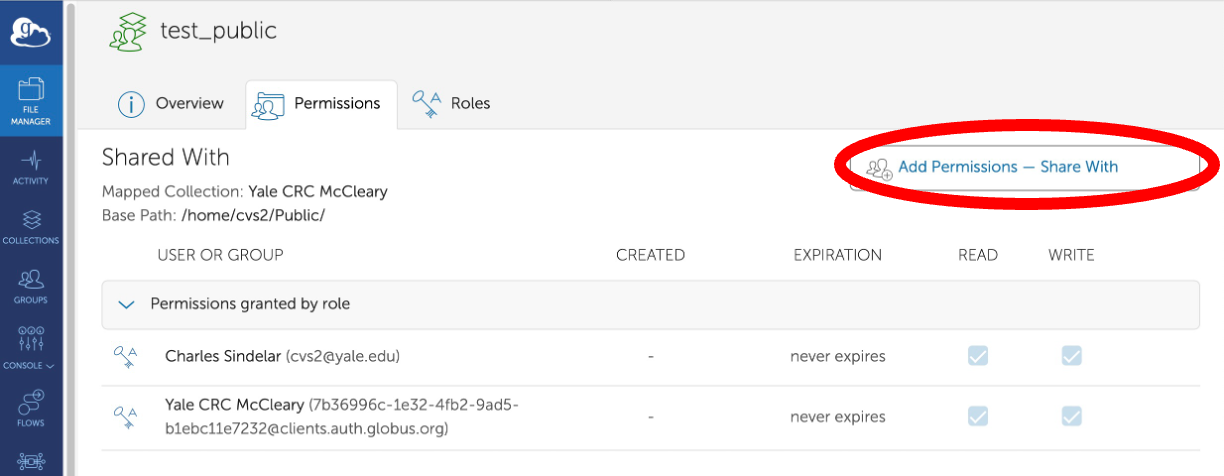
- In the resulting panel, choose appropriate options in 'Share With' and 'Username or Email' according to how you would like to share. The safest option is to share with a specific globus user, first checking with your collaborator to ensure they have a globus username; then you should be able to find them in the 'Username or Email' search box. Alternatively, the public (anonymous) option allows even non-globus users to download your data if they receive the link; obviously this option is the least secure. When you are finished adding permissions, click 'Done' if necessary to go to the next screen.

- Finally, to get a shareable URL link to your new collection, click 'Show link for sharing' (circled in red below):

Manage Your Collections
To manage your collections, such as delete an collection, rename it, or share it with additional people (be aware, they will be able to access your storage), go to Manage Collection on the Globus website.
Transfer to/from Cloud Storage
Set up a Microsoft OneDrive Collection
- Click on the following link: Globus OneDrive Collection
- Log into Globus, if needed.
- The first time you log into the collection, you will be asked to grant access to your OneDrive account. Click to allow access and be taken through the approval process.
- After granting approval, you will be able to access the top level of your Yale OneDrive via the Globus Collection "Yale OneDrive".
Set up a Dropbox Collection
- Click on the following link: Globus Dropbox Collection
- Log into Globus, if needed.
- The first time you log into the collection, you will be asked to grant access to your DropBox account. Click to allow access and be taken through the approval process.
- After granting approval, you will be able to access the top level of your DropBox storage via the Globus Collection "Yale Dropbox".
Set up a Google Drive Collection
The Globus connector is configured to only allow data to be uploaded into EliApps (Yale's GSuite for Education) Google Drive accounts.
- Click on the following link: Globus Google Drive Collection
- Log into Globus, if needed.
- The first time you login to the Globus Google Drive collection, you will be asked to grant access to your Google Drive. Click to allow access and be taken through the approval process.
- You may see your Yale EliApps account expressed in an uncommon format, such as netid@yale.edu@accounts.google.com. This is normal, and expected.
- After granting approval, you will be able to access your Google Drive via the Globus Collection "YCRC Globus Google Drive Collection". The default view is "/My Drive". To see "/Team Drives" and other Google Drive features use the "up one folder" arrow icon in the File Manager.
Note
There are "rate limits" to how much data and how many files you can transfer in any 24 hours period. If you have hit your rate limit, Globus should automatically resume the transfer during the next 24 hour period. You see a "Collection Busy" error during this time.
Google has a 400,000 file limit per Shared Drive, so if you are archiving data to Google Drive, it is better to compress folders that contain lots of small files (e.g. using tar) before transferring.
In our testing, we have seen up to 10MB/s upload and 100MB/s download speeds.
Set up an S3 Collection
We support creating Globus S3 collections. To request a Globus S3 Collection, please contact YCRC. Please include in your request:
- S3 bucket name
- The Amazon Region for that bucket
- An initial list of Yale NetIDs who should be able to access the bucket
Warning
Please DO NOT send us the Amazon login credentials through an insecure method such as email or our ticketing system.
After we have created your Globus S3 collection, you will be able to further self-serve you own access controls with the Globus portal.